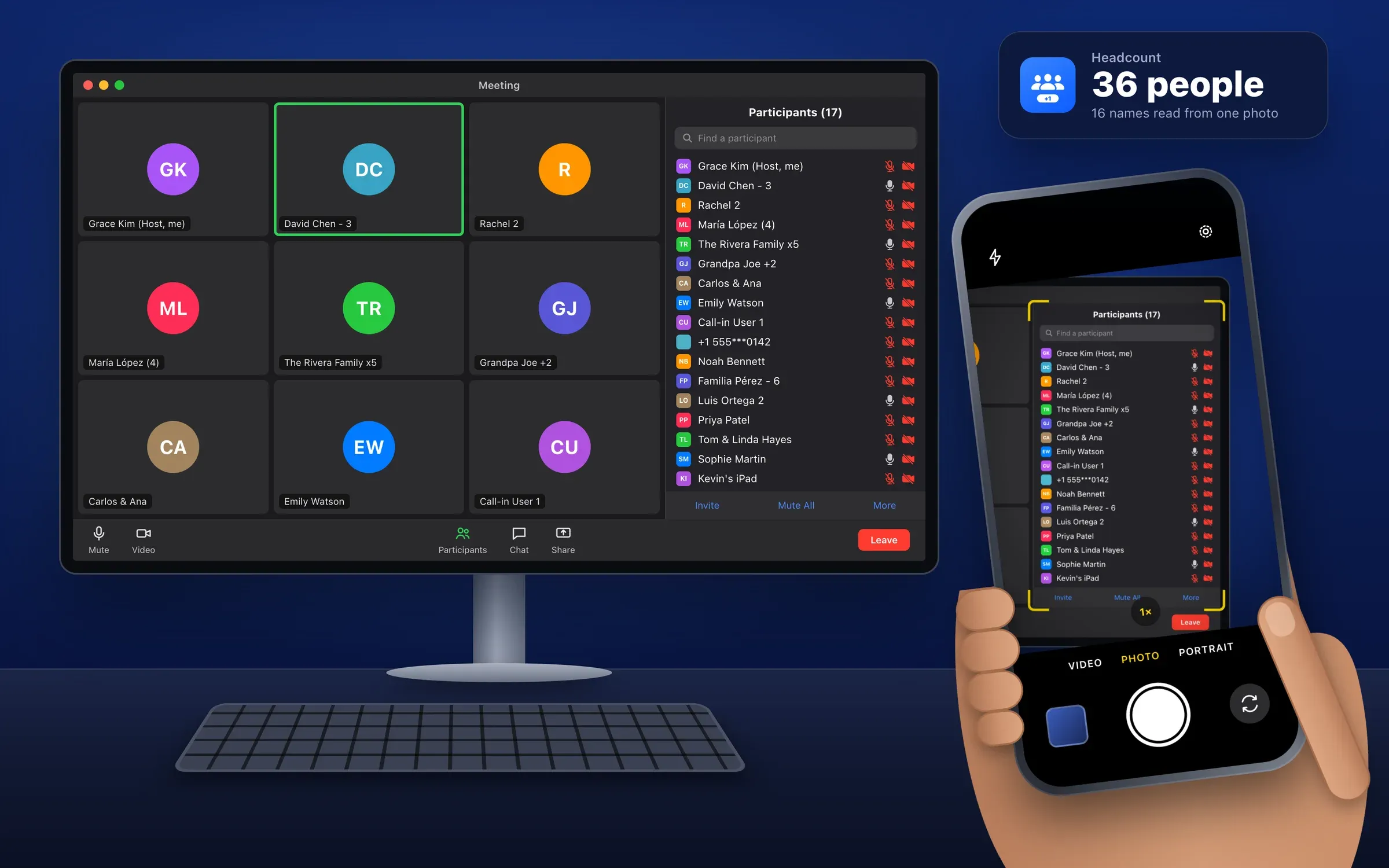
Zoom on a computer?
Just take a photo of the screen.
Tap New Count, then Camera, and point your iPhone at the participant list. Headcount reads every name in the photo and counts everyone, families included.
Meeting attendance · by EspinalLab

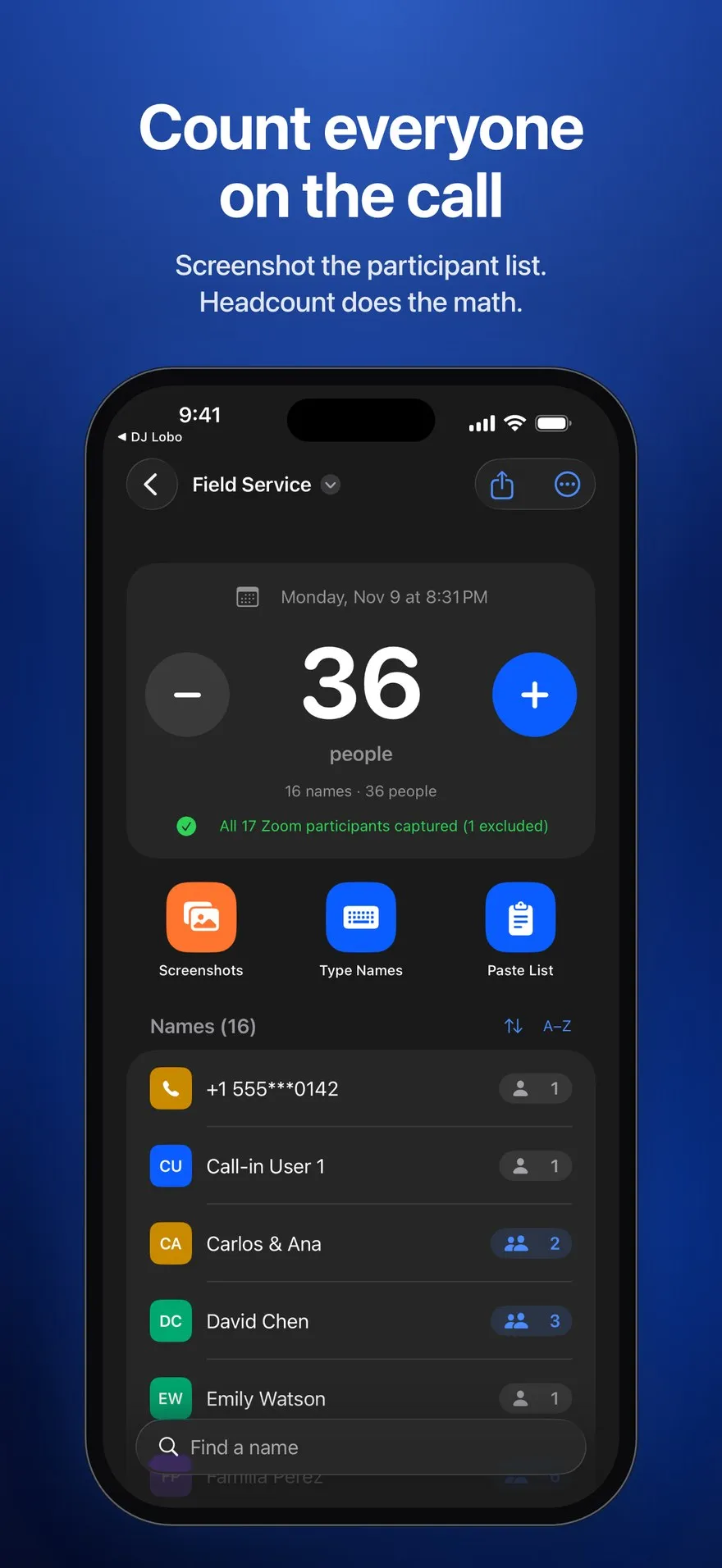
One screen on the call is often a whole family. Take screenshots of the Zoom participant list, and Headcount reads every name, counts everyone watching together and gives you the real attendance in seconds.
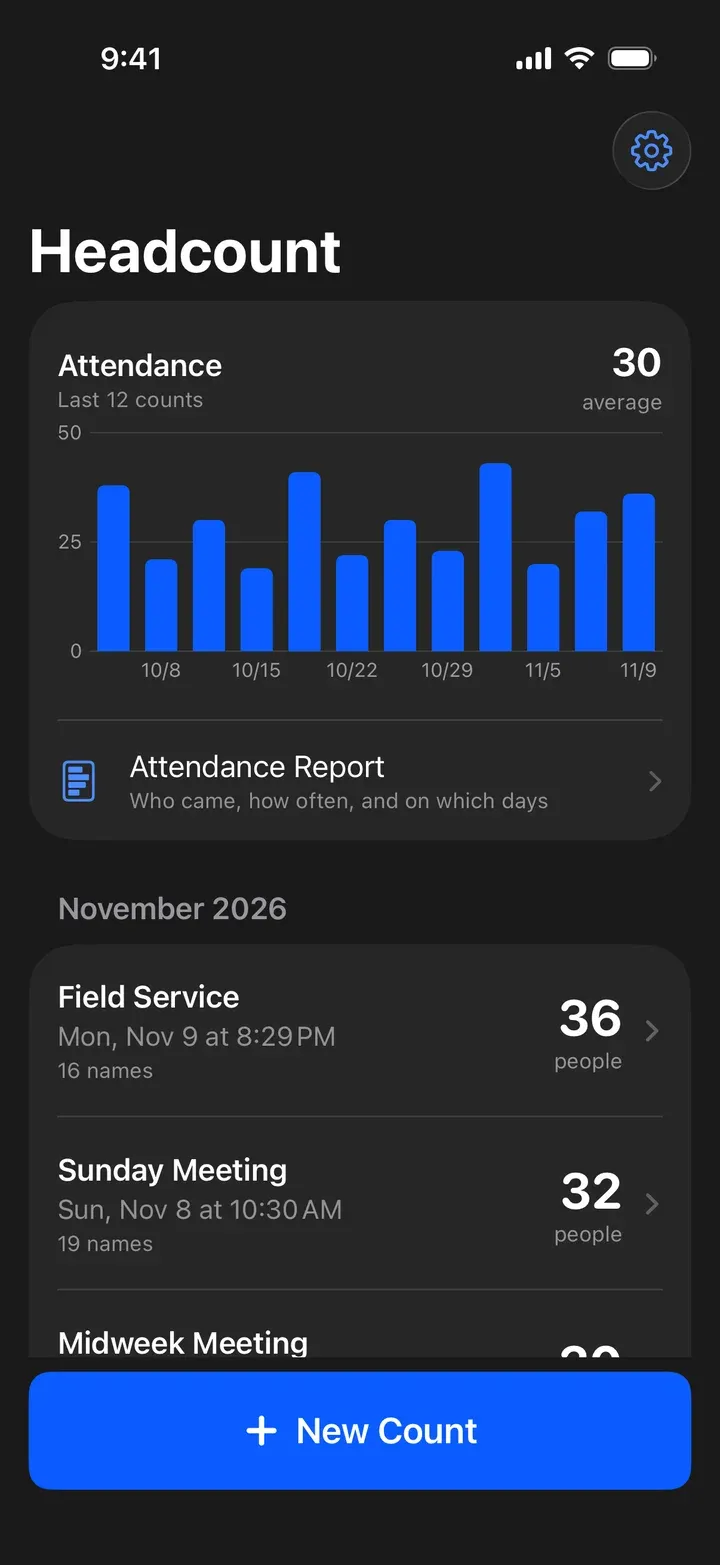
Video
How it works
In Zoom, open Participants and take a screenshot. Scroll and take another until you reach the end. Overlapping is fine. On a computer, take a photo of the screen instead.
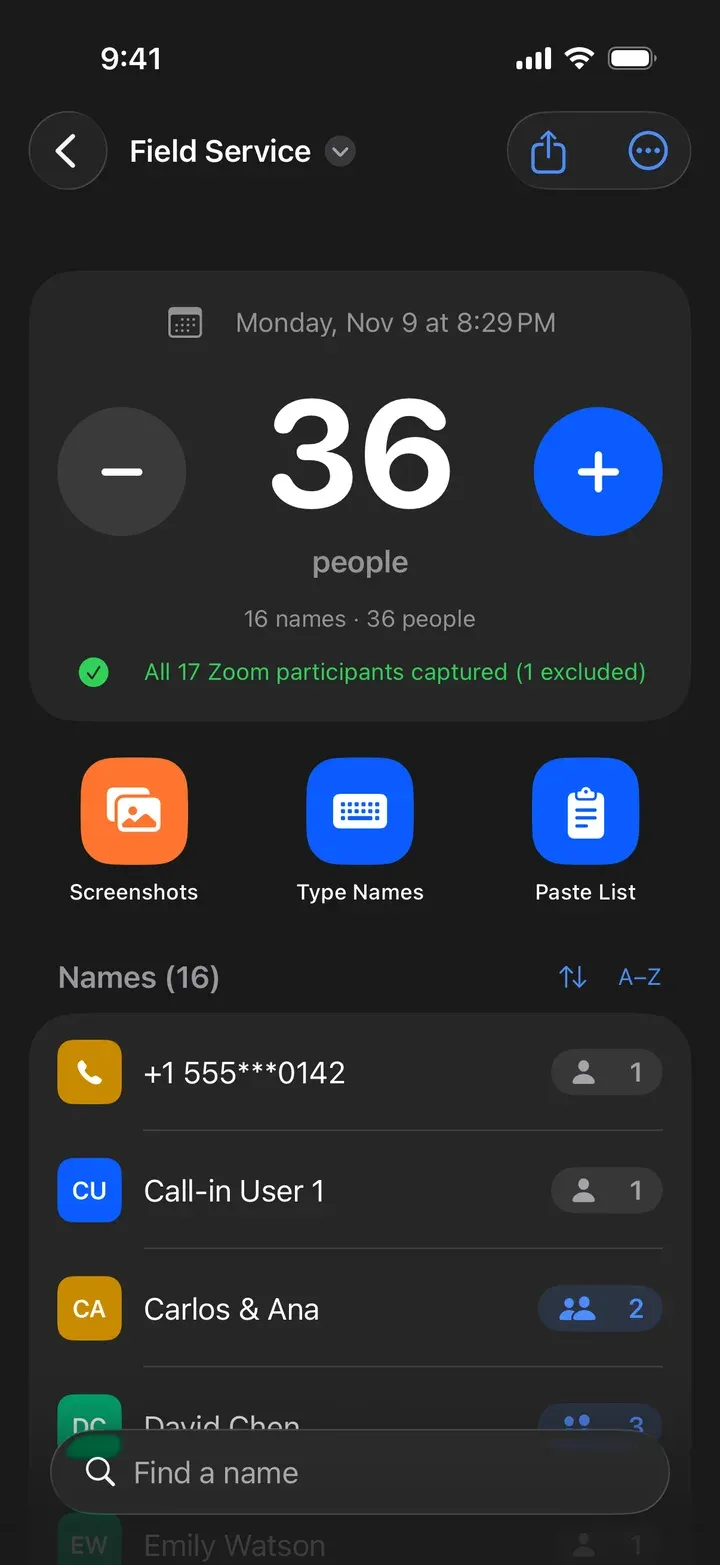
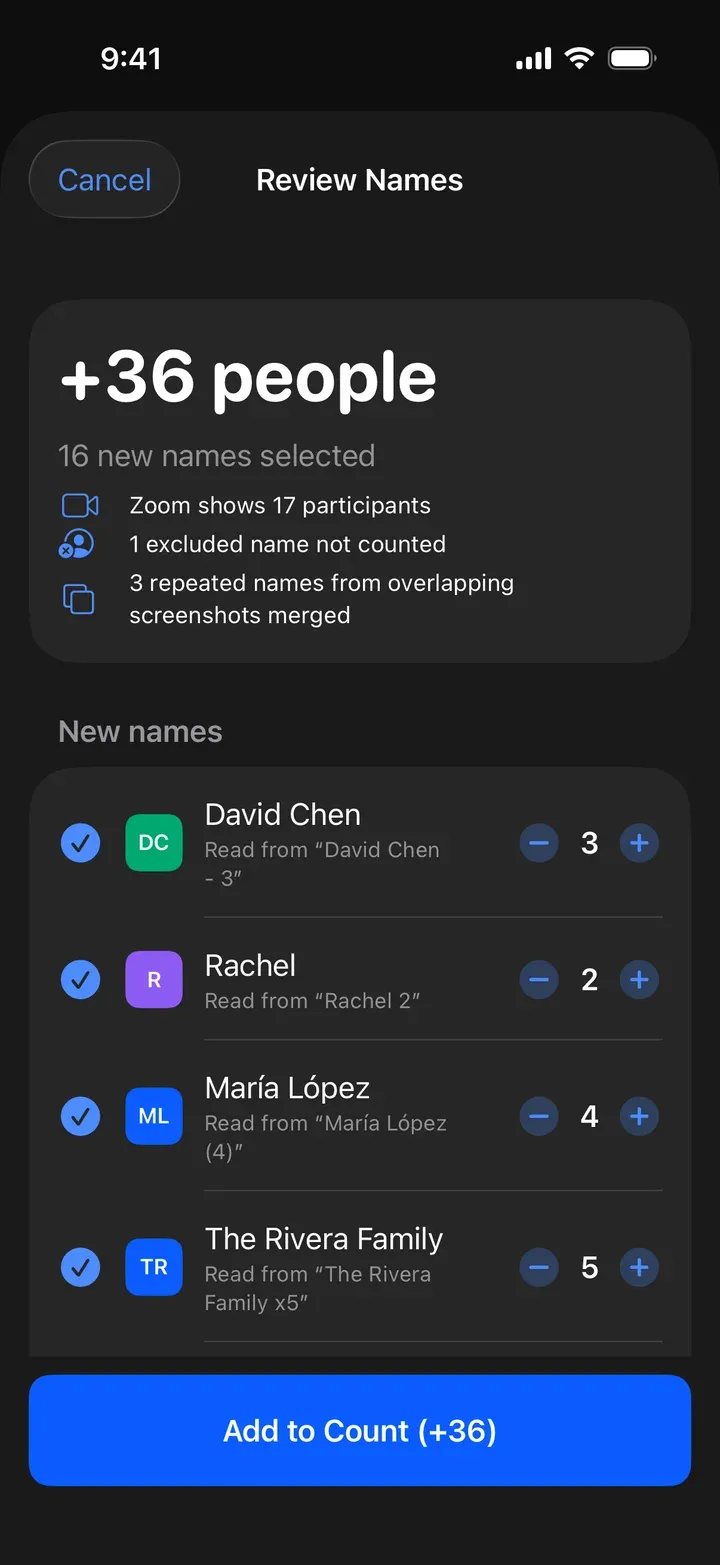
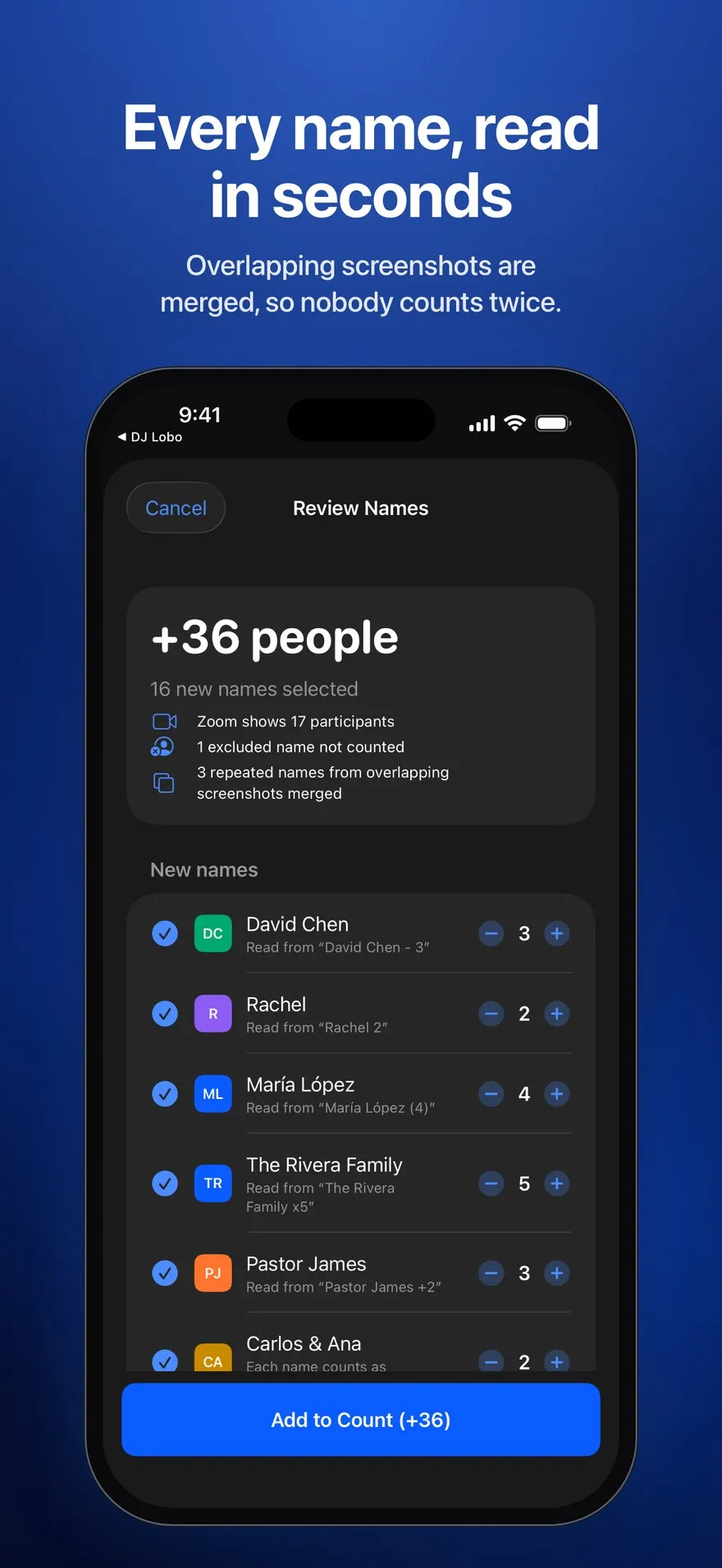
Tap New Count, then Screenshots. Headcount reads every name on your device in seconds, and merges names that show up in more than one screenshot.
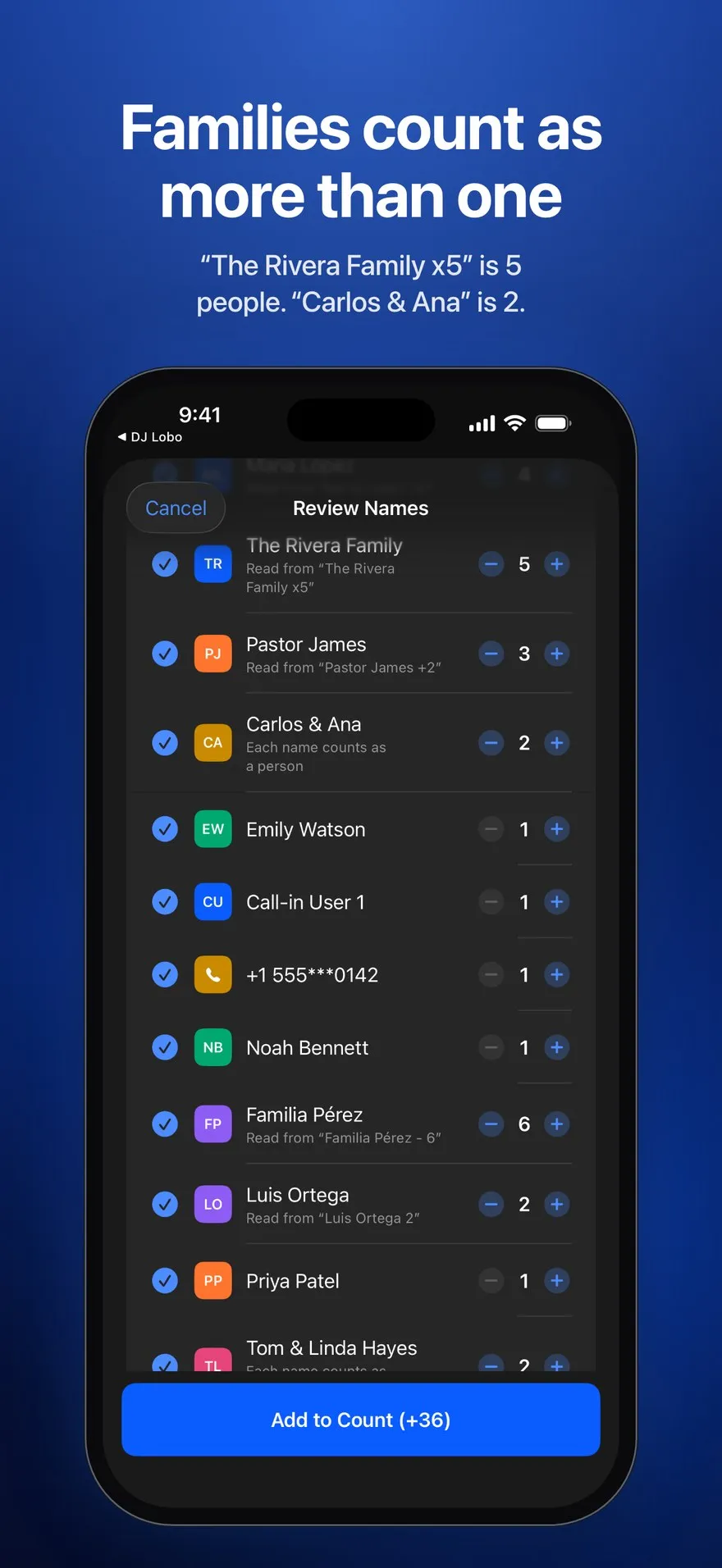
Fix a spelling, change a head count or leave someone out with a tap. Add them to the count, and you have your number.
Features
Zoom on a computer?
Tap New Count, then Camera, and point your iPhone at the participant list. Headcount reads every name in the photo and counts everyone, families included.
Families
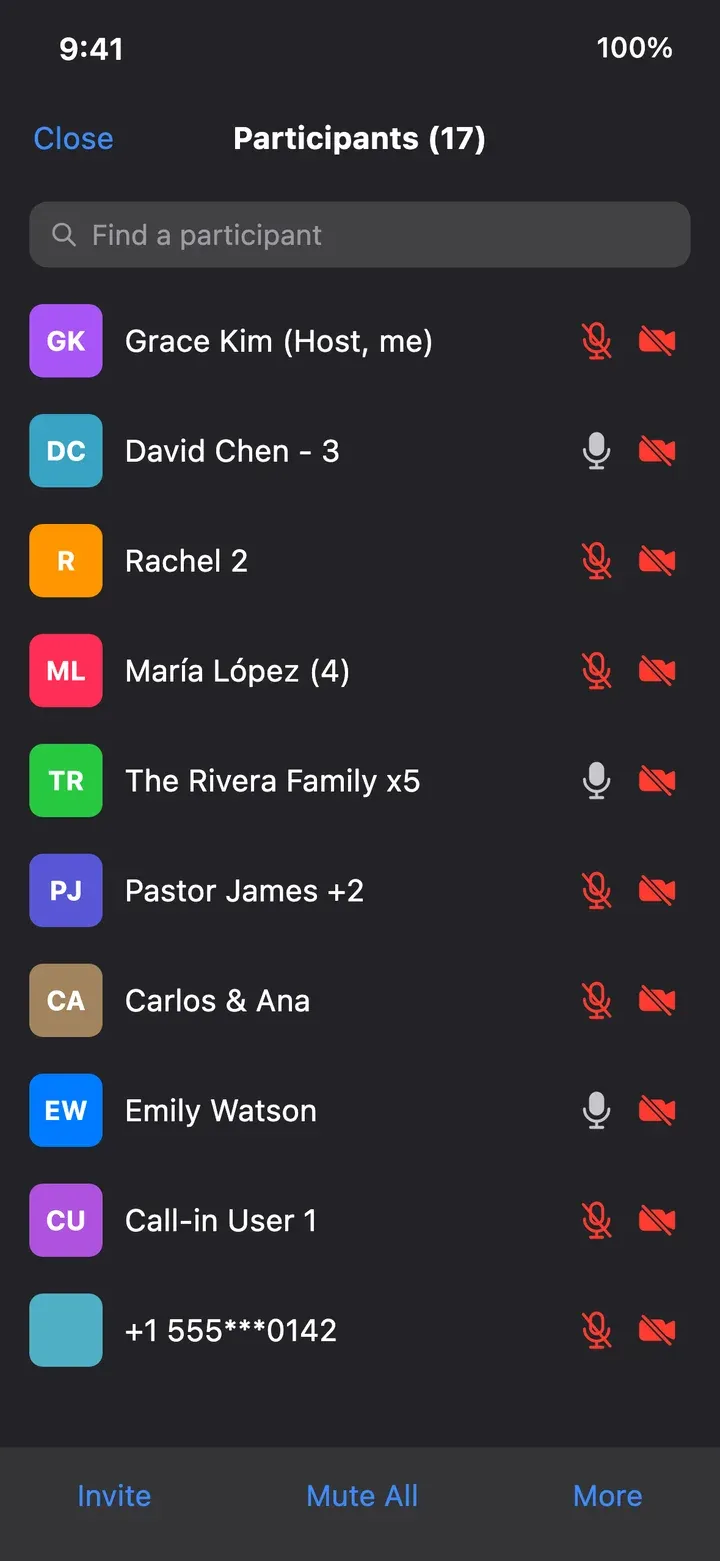
Zoom counts screens. Headcount reads the numbers people add to their names, and counts everyone they include.
Device and room names like "iPhone 15" or "Room 101" aren't mistaken for head counts.
Made for the Zoom attendant
Whoever runs the Zoom and reports the attendance gets a number they can trust. Headcount skips the names that aren't people watching, like the host, "Zoom Attendant" or "Platform", plus any name you add.
History
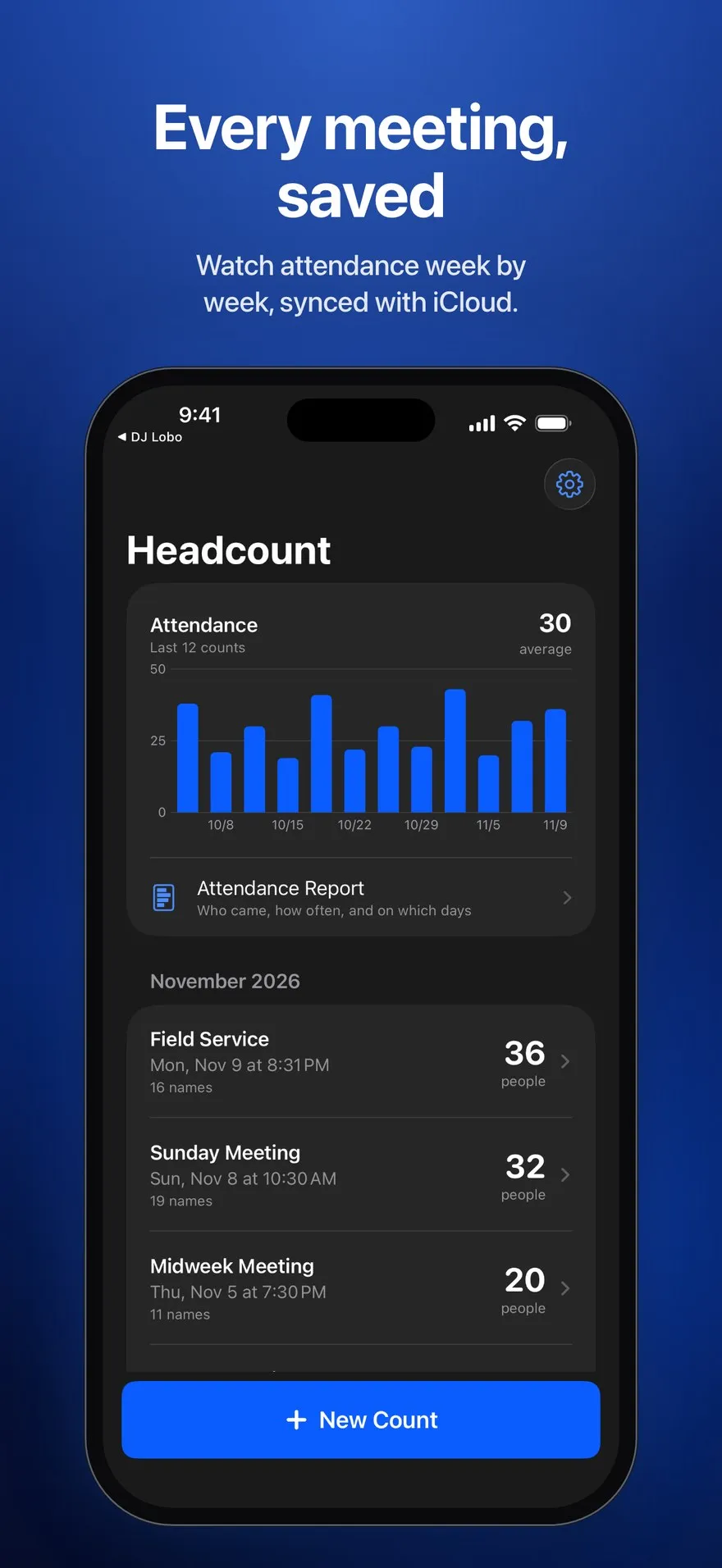
Each count is saved with its date, its names and a log of every change. The chart shows your attendance meeting after meeting, with the average for your last 12 counts.
Attendance report
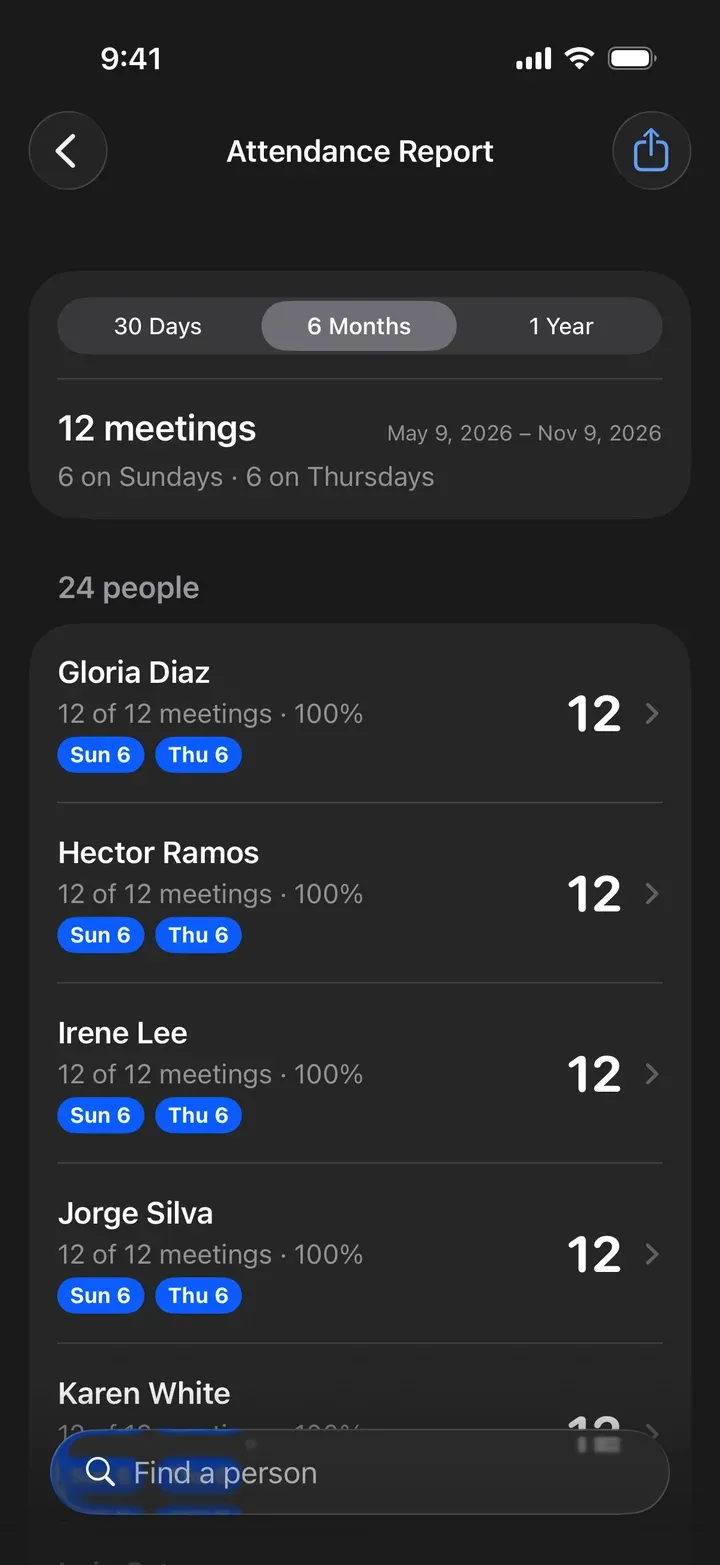
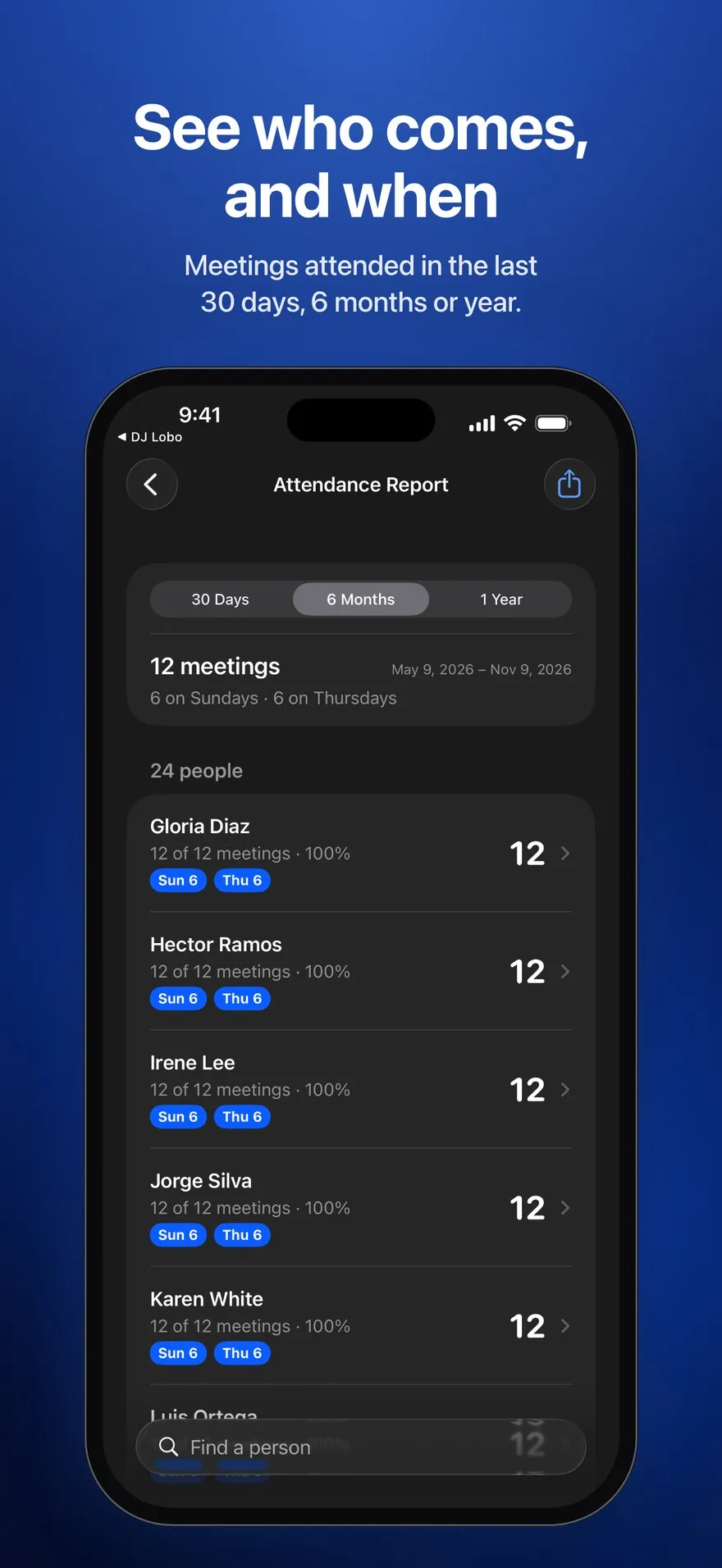
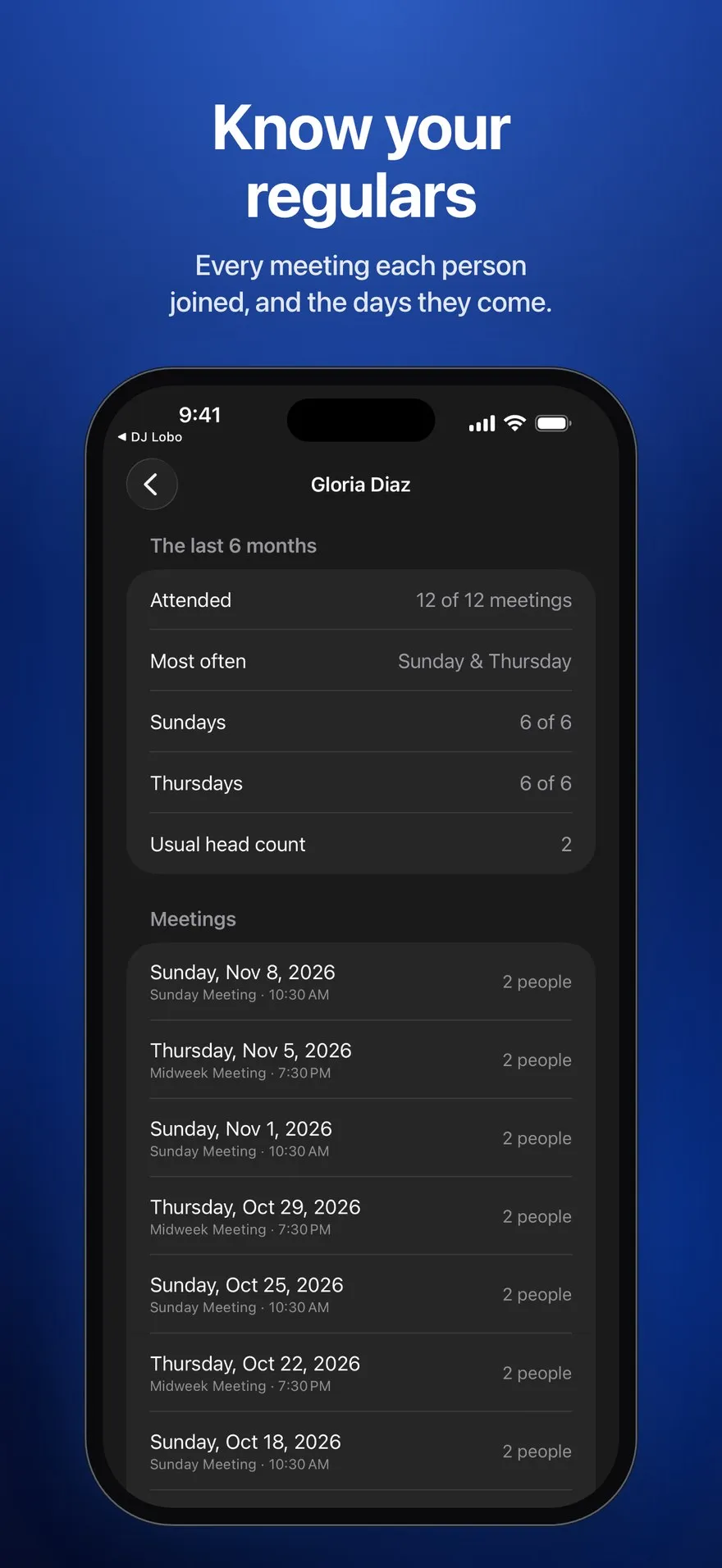
The report lists everyone who joined in the last 30 days, 6 months or year: how many meetings they came to, and on which days of the week. Tap a name to see each meeting they attended.
iPad
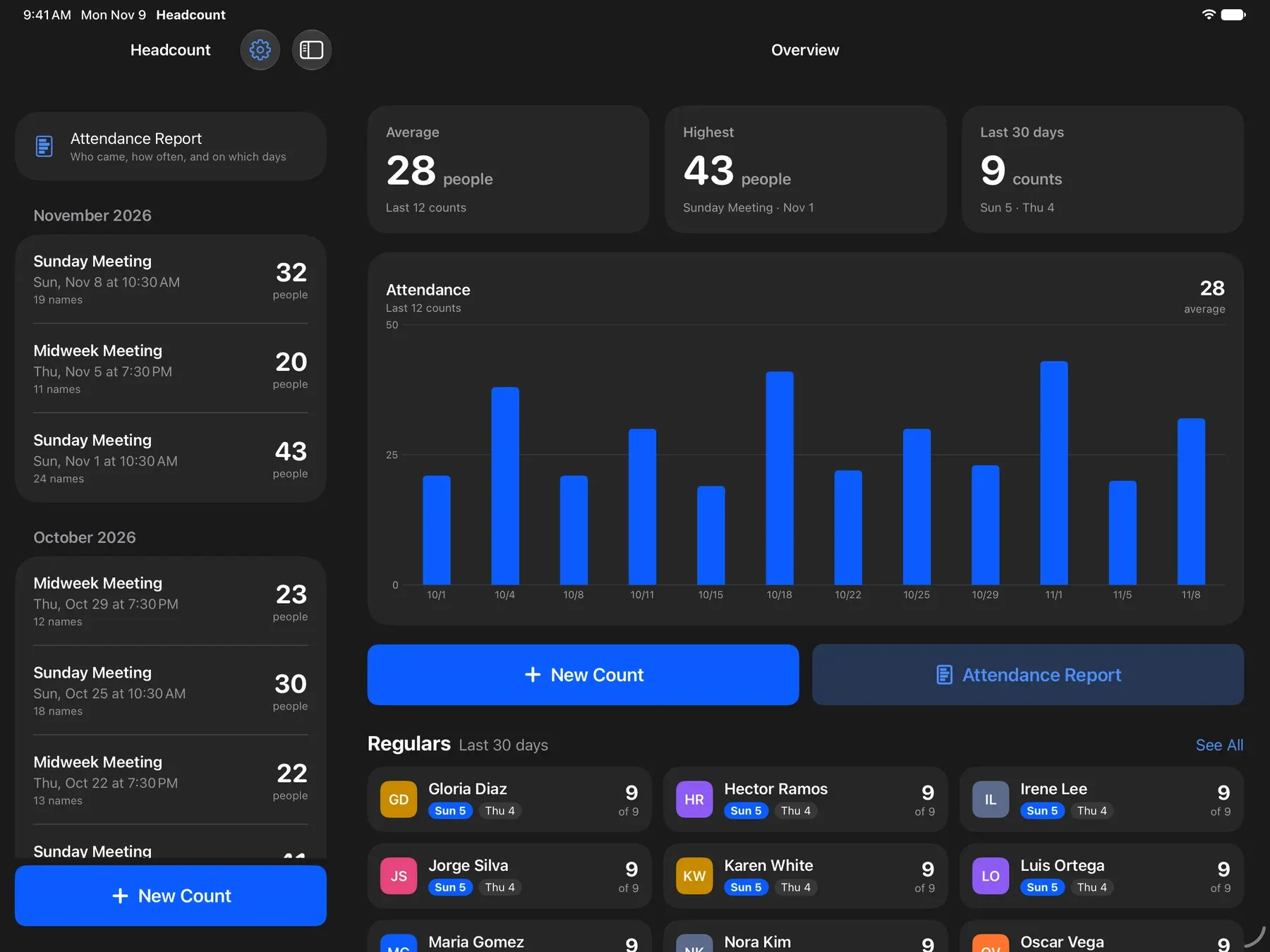
See your counts, the names and the report side by side.
Privacy
Names are read on your iPhone or iPad. Nothing is sent to us.
Open the app and start counting. There's nothing to sign up for.
Counts and settings sync through your own iCloud account, and come back if you reinstall the app.
Back up every count to one file and send it to another attendant, who can restore it on their device.
Screenshots
It is made for congregation meetings, and works for any group that meets online, such as field service groups, classes and study groups, clubs and support groups.
No. It reads screenshots of the participant list, so there's nothing to connect or sign in to. It understands Zoom's "(Host)" tags, the waiting room and the participant total at the top of the list.
Yes. Names repeated in overlapping screenshots are merged, and names already in the count are skipped. Names that look almost the same, like a spelling slip, are shown for you to decide.
No. On devices with Apple Intelligence, it double-checks each scan on the device. Everywhere else, Headcount's built-in rules do the counting, with every feature still there.
Yes. In Settings, tap Back Up Counts and send the file. The other attendant saves it, then taps Restore from Backup in Settings, which adds the counts they don't have yet and never deletes any.
An iPhone or iPad with iOS 17 or iPadOS 17 or later. Apple Intelligence needs iOS 26 or later on a supported device.
Headcount: Meeting Attendance, for iPhone and iPad.