

Headcount support
Headcount counts the people in your online meeting from screenshots of the participant list, including families and groups watching together.
Need help or found a problem? Email support@espinallab.com. Include your iPhone or iPad model, and a screenshot if you can.
Counting a meeting
- In your meeting, open the participant list and take a screenshot. Scroll down and take another, until you reach the end of the list. Each screenshot should overlap the one before by a name or two.
- Open Headcount, tap New Count, then Screenshots, and choose the screenshots.
- Check the names. Tap a name to fix its spelling, use – and + to change how many people it counts, or uncheck it to leave it out.
- Tap Add to Count.
You can also take a photo of a computer screen with Camera, or add names with Type Names and Paste List. The big – and + buttons change the total by one.
Try it with sample screenshots
No meeting handy? These two screenshots of a participant list use made-up names. On your iPhone or iPad, touch and hold each one and tap Save to Photos. Then, in Headcount, tap New Count, then Screenshots, and choose both. Headcount finds 36 people.
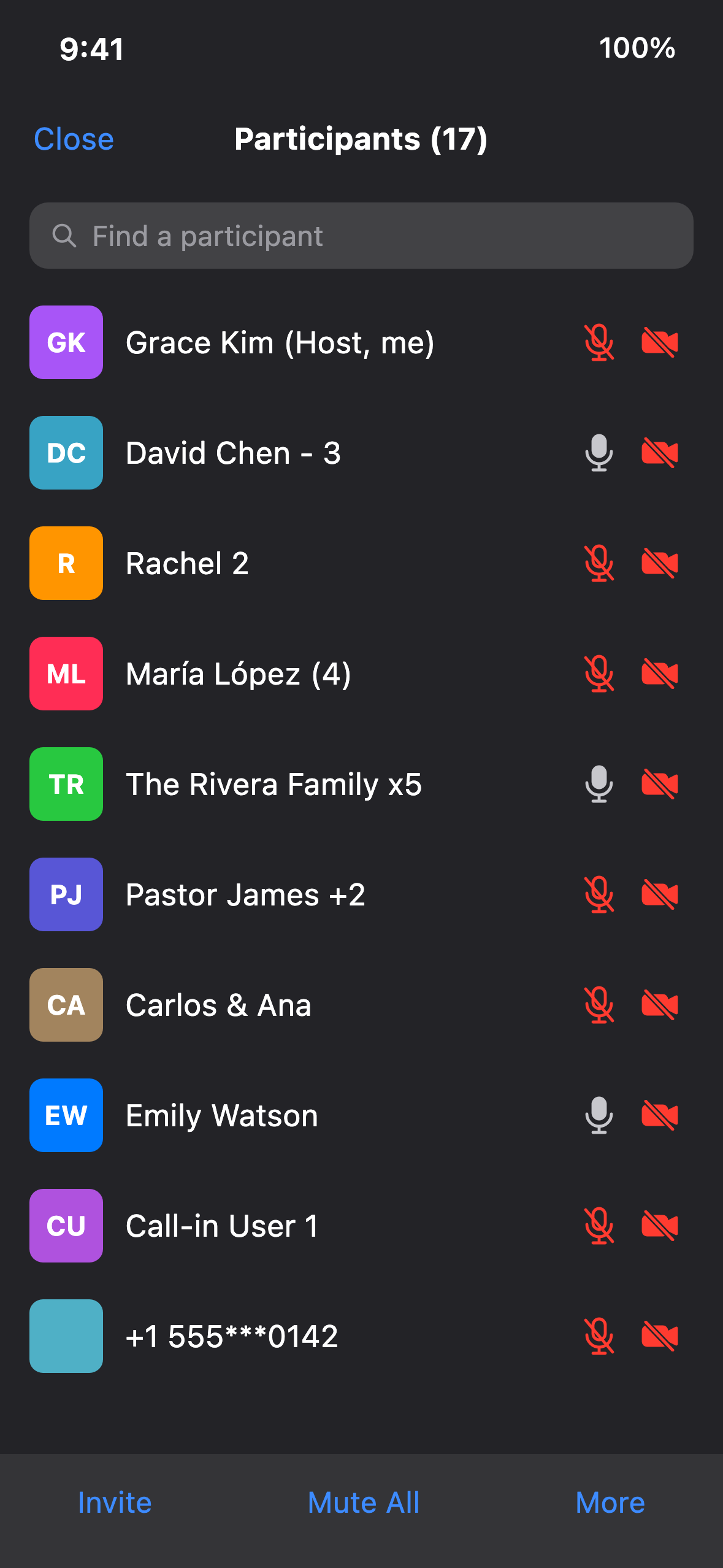
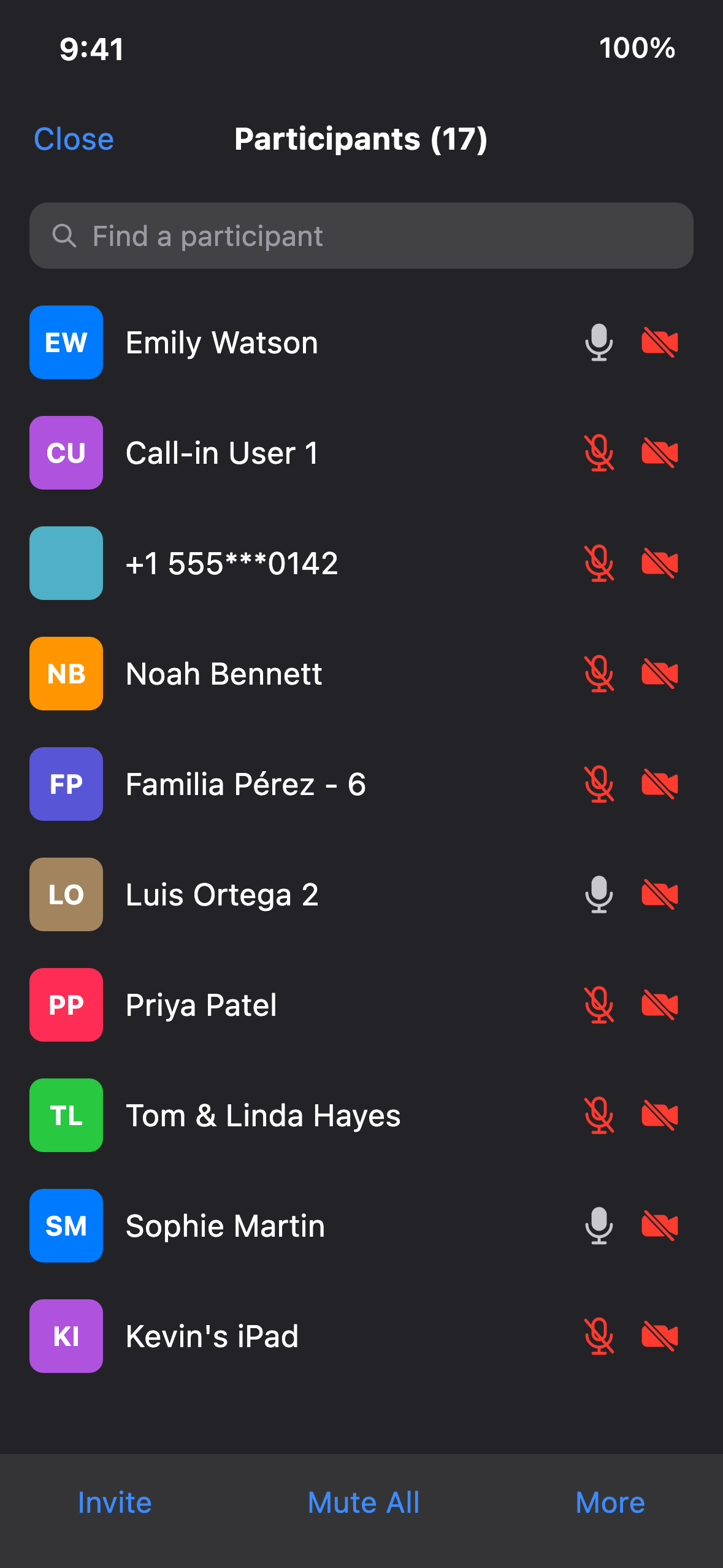
Or copy this list and use Paste List. Headcount finds 30 people, and skips the host.
Questions
How does Headcount know how many people a name is?
It reads numbers in names: "David Chen - 3", "Rachel 2", "María López (4)", "The Rivera Family x5" and "Familia Pérez 6 personas" are 3, 2, 4, 5 and 6 people. "Grandpa Joe +2" is 3 people. Names joined with "&", "and" or "y", like "Carlos & Ana", count each person. In Settings you can choose whether "John Doe - 3" means 3 people in total or John plus 3 others.
Someone is missing from the count.
Make sure your screenshots overlap: the review screen warns you when two screenshots share no names, because someone in between may have been missed. Headcount also compares its names with the number at the top of the participant list, like "Participants (34)", and tells you when it has fewer. You can add a missing person with Type Names or the + button.
Can the same person be counted twice?
No. Names repeated in overlapping screenshots are merged, and names already in the count are skipped. Names that look almost the same (a spelling slip, or first and last name swapped) are shown for you to decide.
How do I stop counting the host, or a room account?
Open Settings → Excluded Names. It starts with common ones like "(Host)" and "(Co-host)", and you can add any name. On the review screen, you can also swipe a name left and tap Exclude.
Where is the attendance report?
On the home screen, under the chart. It lists everyone who attended in the last 30 days, 6 months or year, how many meetings they came to, and on which days. Tap Export to save it as a spreadsheet for Numbers, Excel or Google Sheets.
Are my counts backed up?
If your device is signed in to iCloud, counts and settings are kept in your iCloud account and come back when you reinstall Headcount or use another device with the same Apple Account. Settings → iCloud shows when they last synced. For an extra copy, tap Settings → Back Up Counts and save the file in Files or send it to someone. Restore from Backup adds the counts that aren't on the device yet, and never deletes any.
What does Apple Intelligence do?
On devices that support Apple Intelligence, it double-checks each scan on your device: it skips text that isn't a name and understands names like "John & Mary". Without it, Headcount uses its built-in rules. You can turn it off in Settings.
Which apps does it work with?
Headcount is made for Zoom's participant list: it understands its "(Host)" tags, waiting room and participant total. Headcount is not affiliated with or endorsed by Zoom Communications, Inc.
What does Headcount need?
iOS 17 or iPadOS 17 or later. Apple Intelligence needs iOS 26 or later on a supported device.